
Kiro
Set up HTFlow MCP in Kiro with your HTFlow API token.
Endpoint
https://mcp.htflow.com/mcp Config path
~/.kiro/settings/mcp.jsonSETUP GUIDE
API tokens Connect Kiro to HTFlow
Open Kiro and scroll down to the "MCP SERVERS" section in the left panel. Click the pencil icon in the top-right corner of the section to open the mcp.json config file at ~/.kiro/settings/mcp.json.
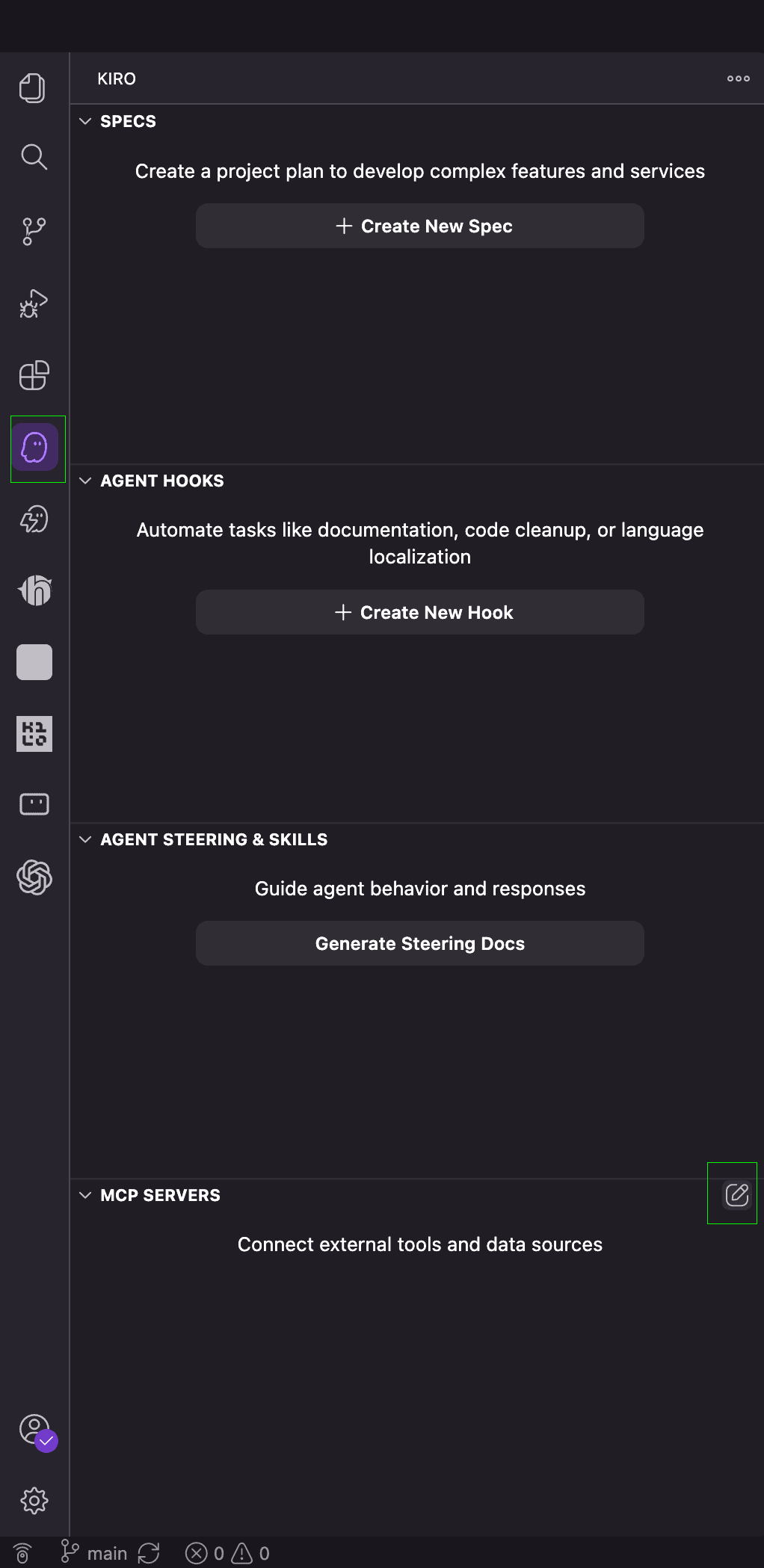
This opens the mcp.json file under the "User Config" tab at ~/.kiro/settings/mcp.json. Paste the config below and replace YOUR_TOKEN with your real HTFlow API token.
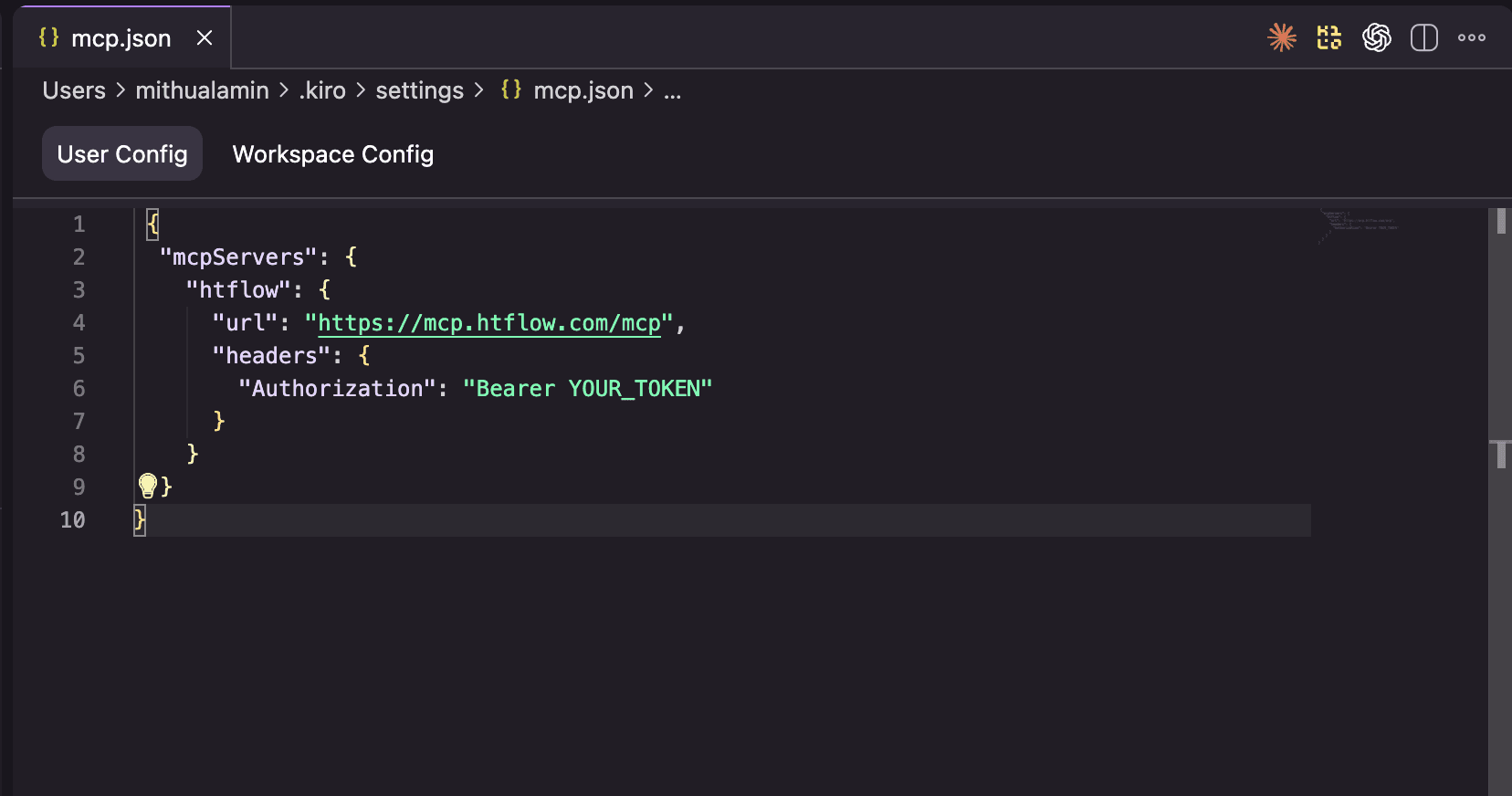
{
  "mcpServers": {
    "htflow": {
      "url": "https://mcp.htflow.com/mcp",
      "headers": {
        "Authorization": "Bearer YOUR_TOKEN"
      }
    }
  }
}
Save the file and restart Kiro. The MCP server should now appear under the "MCP SERVERS" section. You can now ask Kiro to generate a full website through HTFlow MCP.
Config snippet
{
  "mcpServers": {
    "htflow": {
      "url": "https://mcp.htflow.com/mcp",
      "headers": {
        "Authorization": "Bearer YOUR_TOKEN"
      }
    }
  }
}